App Domain settings defines the main web domain for your white-label platform. This domain is used for sign-in, sign-up, and all default application pages unless a user or company sets their own custom domain.
It also controls basic metadata for the application, such as the favicon and meta description.
Enter the full app domain, including the subdomain.
Subdomain (recommended)
Example: card.logoipsum.online
This uses a standard CNAME record and is the simplest setup.
After clicking Add Domain, you will be shown one DNS record to add:
Type: CNAME
Host / Name: Your chosen subdomain
Example: card
Value / Target:
custom.digitalpasslink.com
Add this record in your DNS provider, then wait for propagation.
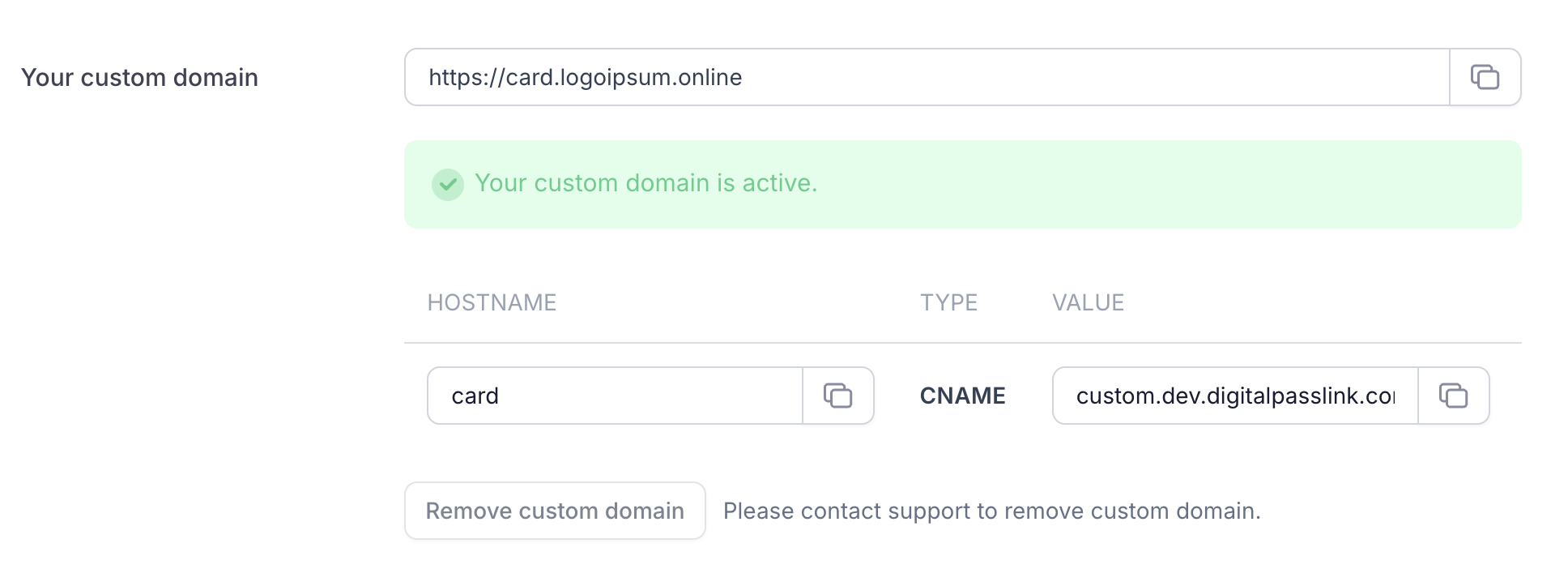
Root domain (optional):
Example: logoipsum.online
Root domains cannot use a CNAME directly. Your DNS provider must support an ALIAS, ANAME, or flattened CNAME record.
Root domain common providers:
Cloudflare: Use an A or CNAME (flattened) record (DNS only)
Namecheap: Use an ALIAS record
GoDaddy: Use an A record or supported ALIAS option
The exact setup depends on your DNS provider.
Important notes
If you use Cloudflare, ensure the record is set to DNS only (not Proxied). Proxied records will prevent verification.
DNS changes can take a few minutes up to a few hours to propagate.
This domain will only change if a user or company sets their own custom domain.
The Meta Description is used for SEO and metadata.
Enter a short description of your business or platform.
Example: “Digital business cards and contact sharing for modern teams.”

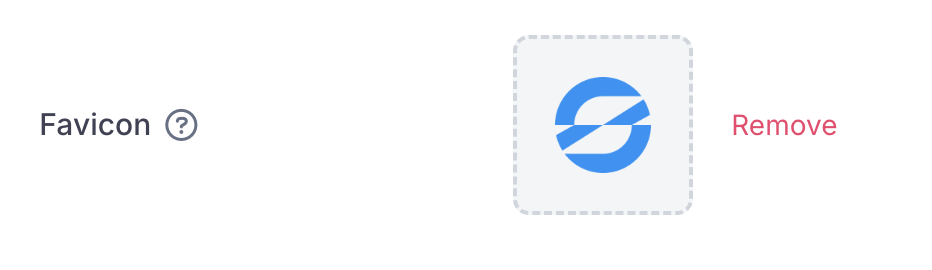
The Favicon is the small icon shown in browser tabs and bookmarks for users of your platform.
Recommended requirements:
Square image (1:1)
Minimum size: 32×32 px
Preferred sizes: 64×64 px or 128×128 px
Format: PNG or SVG
Transparent background recommended
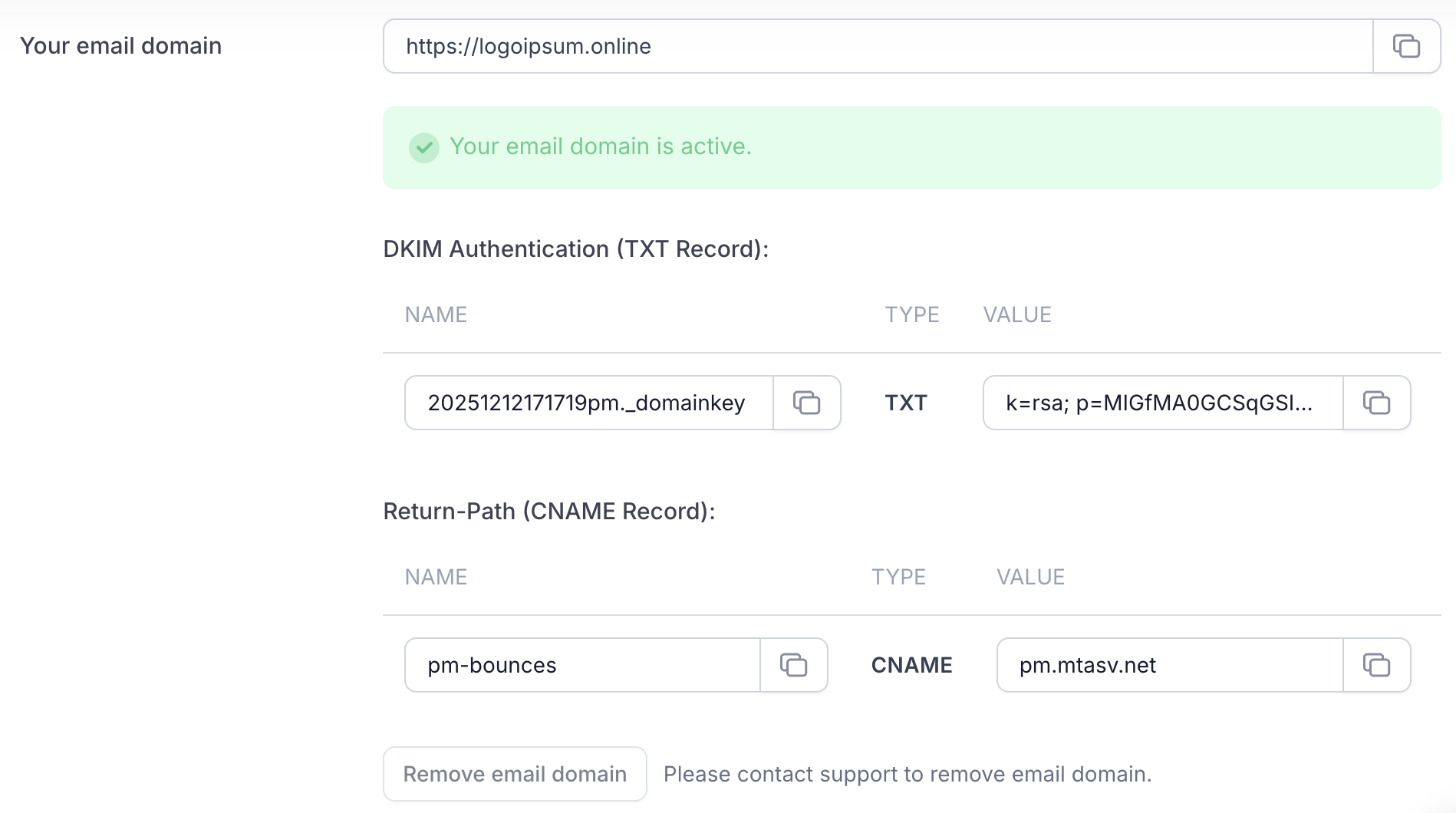
The Email Domain controls the domain emails are sent from.
Unlike the app domain, this uses your main domain, not a subdomain.
Example:
Email Domain: logoipsum.online
After clicking Add Domain, you will be asked to add two DNS records.
1. DKIM (TXT record)
Type: TXT
Name: (provided in the UI)
Value: (provided in the UI)
This record authorises our email system to send emails on your behalf.
2. Return Path (CNAME record)
Type: CNAME
Name: (provided in the UI)
Value: (provided in the UI)
This improves email deliverability and reputation.
Once both records are added, click Verify Domain.
Verification usually completes within 5–10 minutes
In some cases, DNS propagation can take up to a few hours
Once verified, all system emails will send from your custom domain.
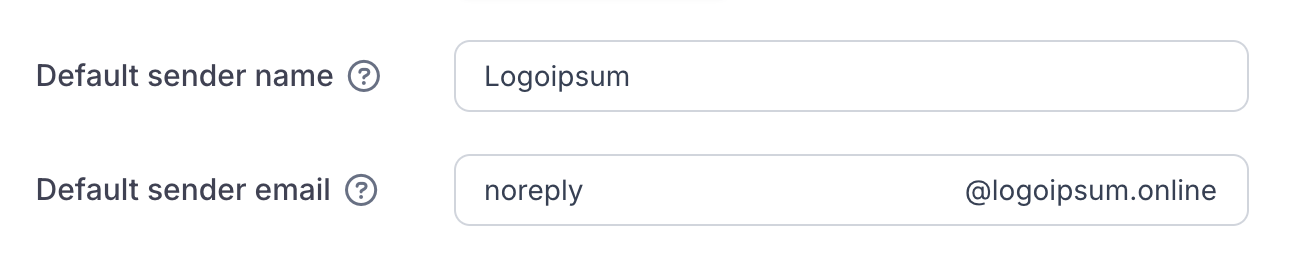
The name shown as the sender in emails. Typically your app name.
Example:
Logoipsum
MyBizCard
The email address emails are sent from.
Example:
If no app domain is set, the platform will default to Swft Connect’s core domain (swft.id)
If no email domain is set, emails will send from a neutral domain under
digitalpasslink.com.
This does not reference Swft Connect in any way.