Cloudflare Turnstile adds protection to your white-label sign-in page by blocking automated login attempts and malicious bots, without using traditional CAPTCHAs.
When enabled, Turnstile helps:
Prevent brute-force login attacks
Reduce bot traffic
Keep the login experience fast and user-friendly for real users
Go to cloudflare.com
Sign up for an account or log in if you already have one

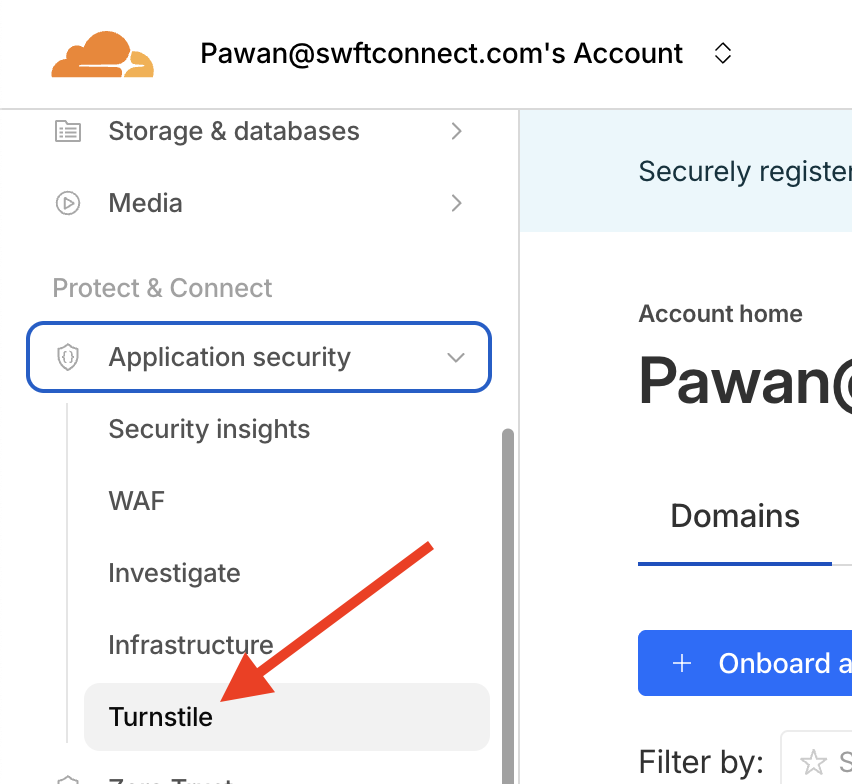
In the Cloudflare dashboard, open the left-hand menu. Click Turnstile
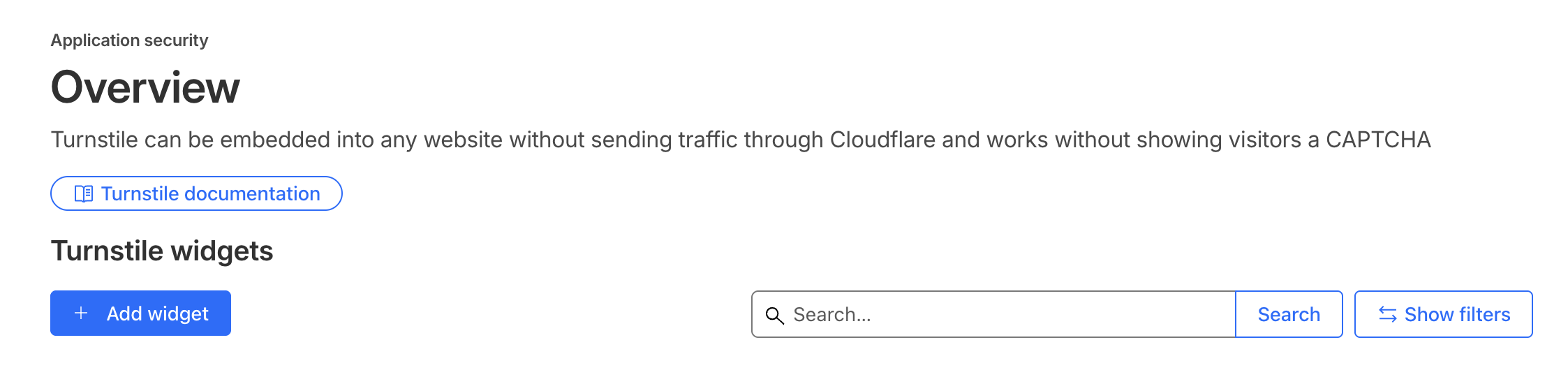
Click Add Widget.
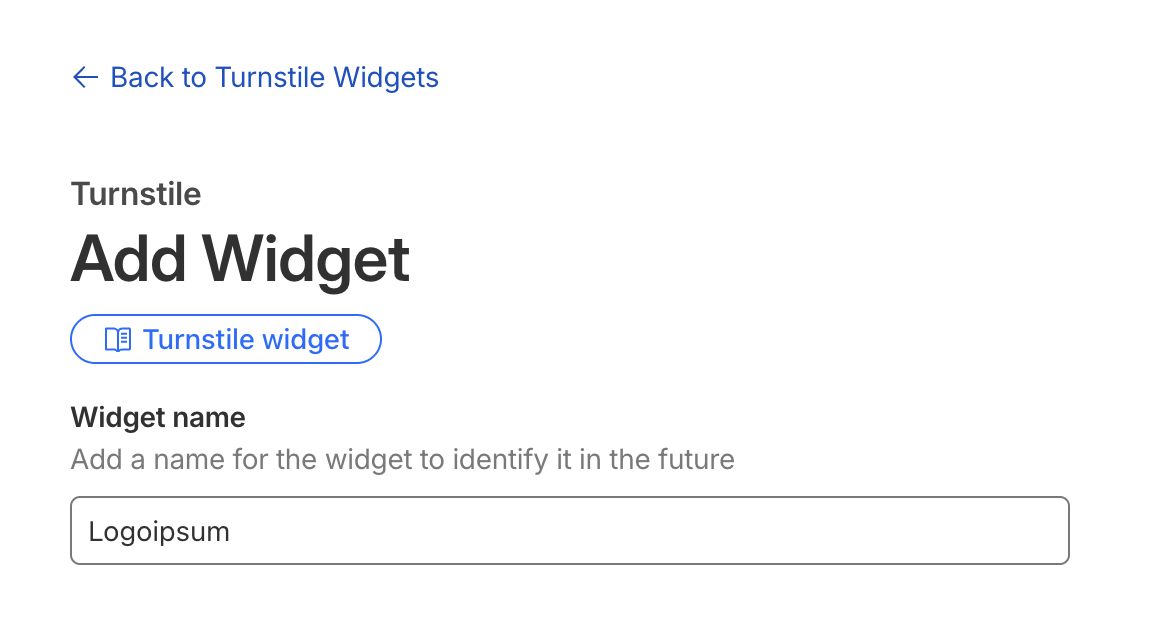
Enter a Widget name.
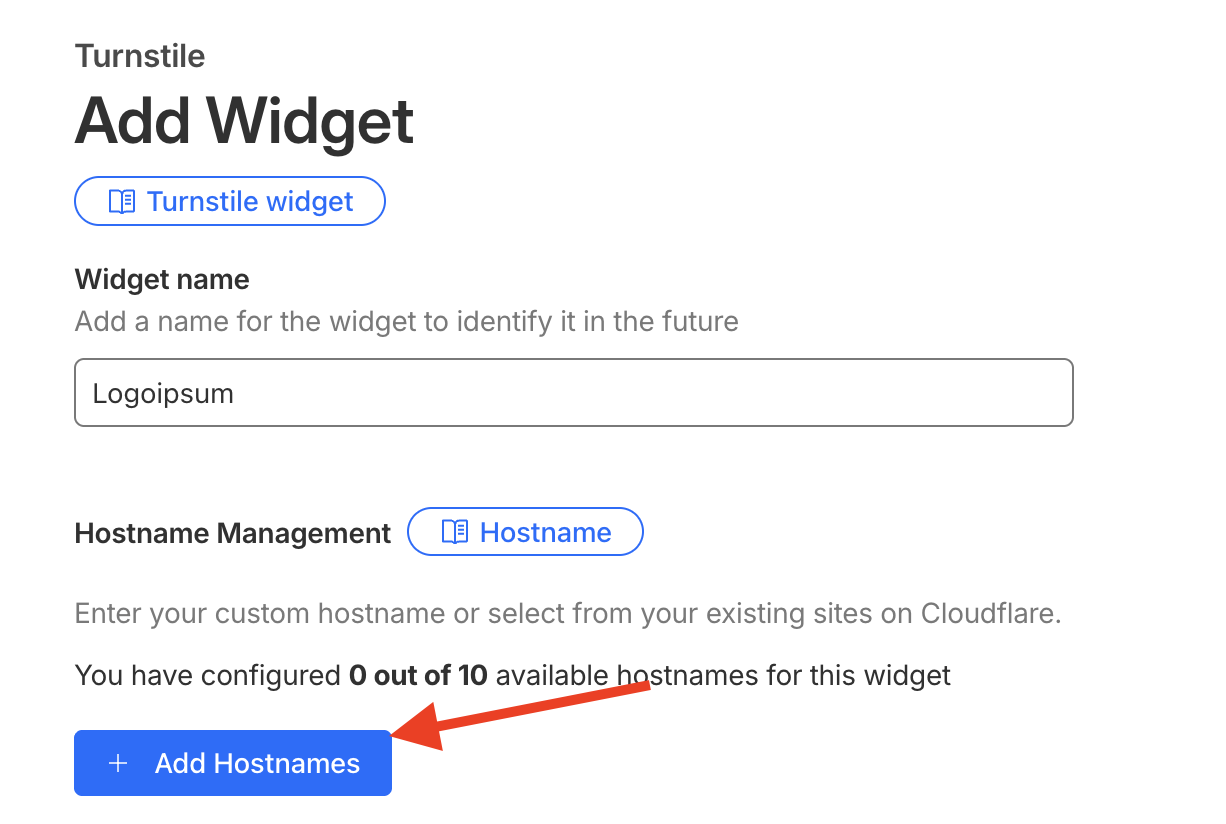
Click Add Hostname.
Enter the domain used for your white-label app login and click Add.
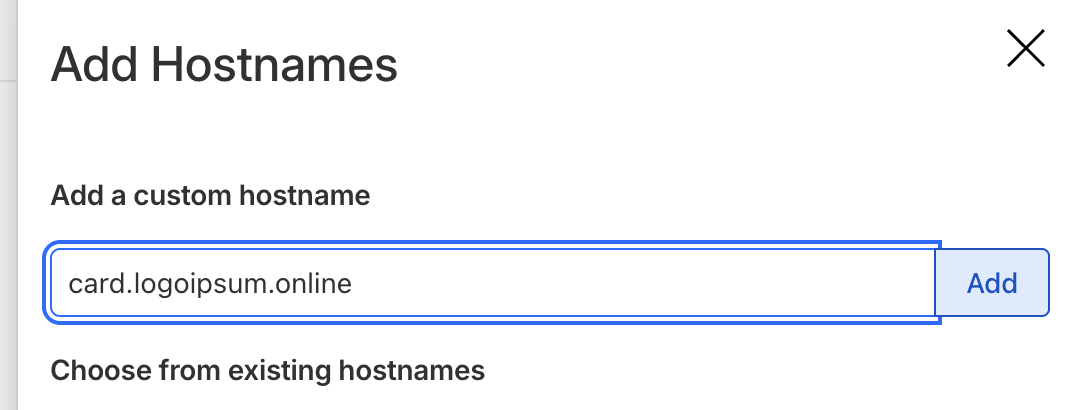
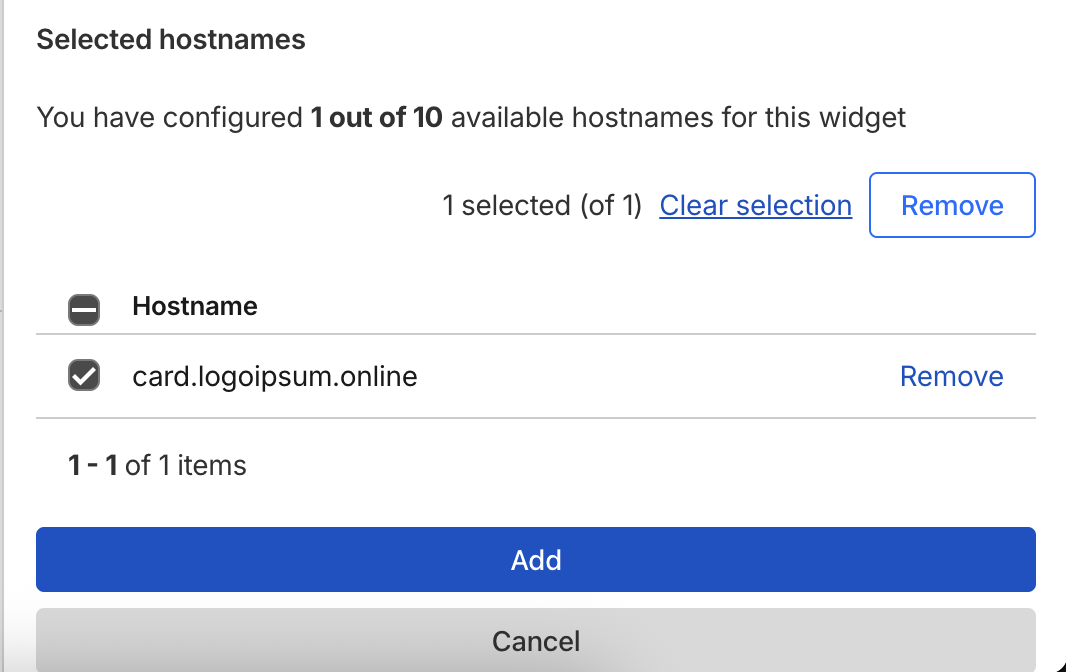
Under selected hostnames, select your domain and click Add at the bottom of the screen.
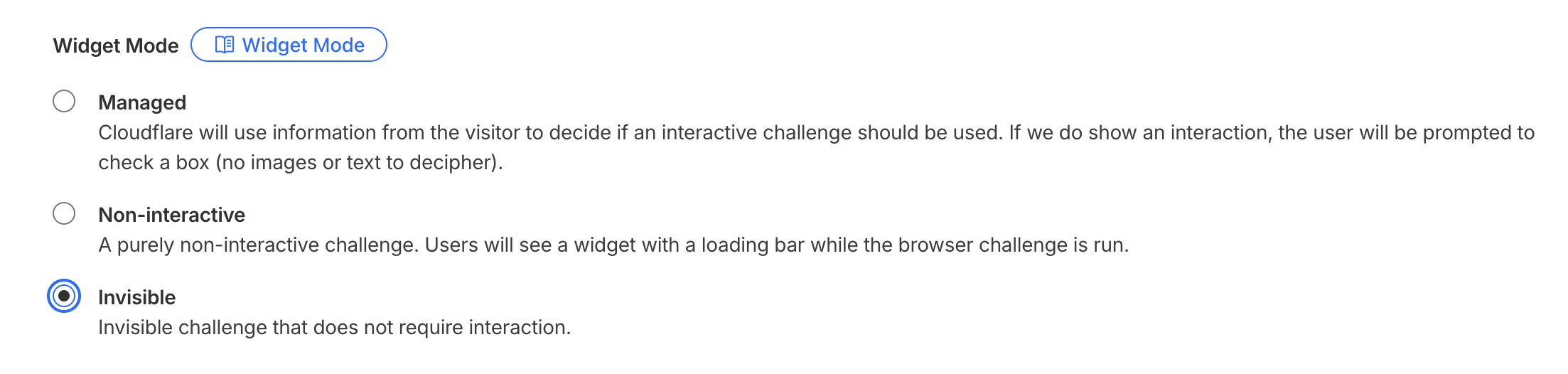
Under Widget Mode, select Invisible
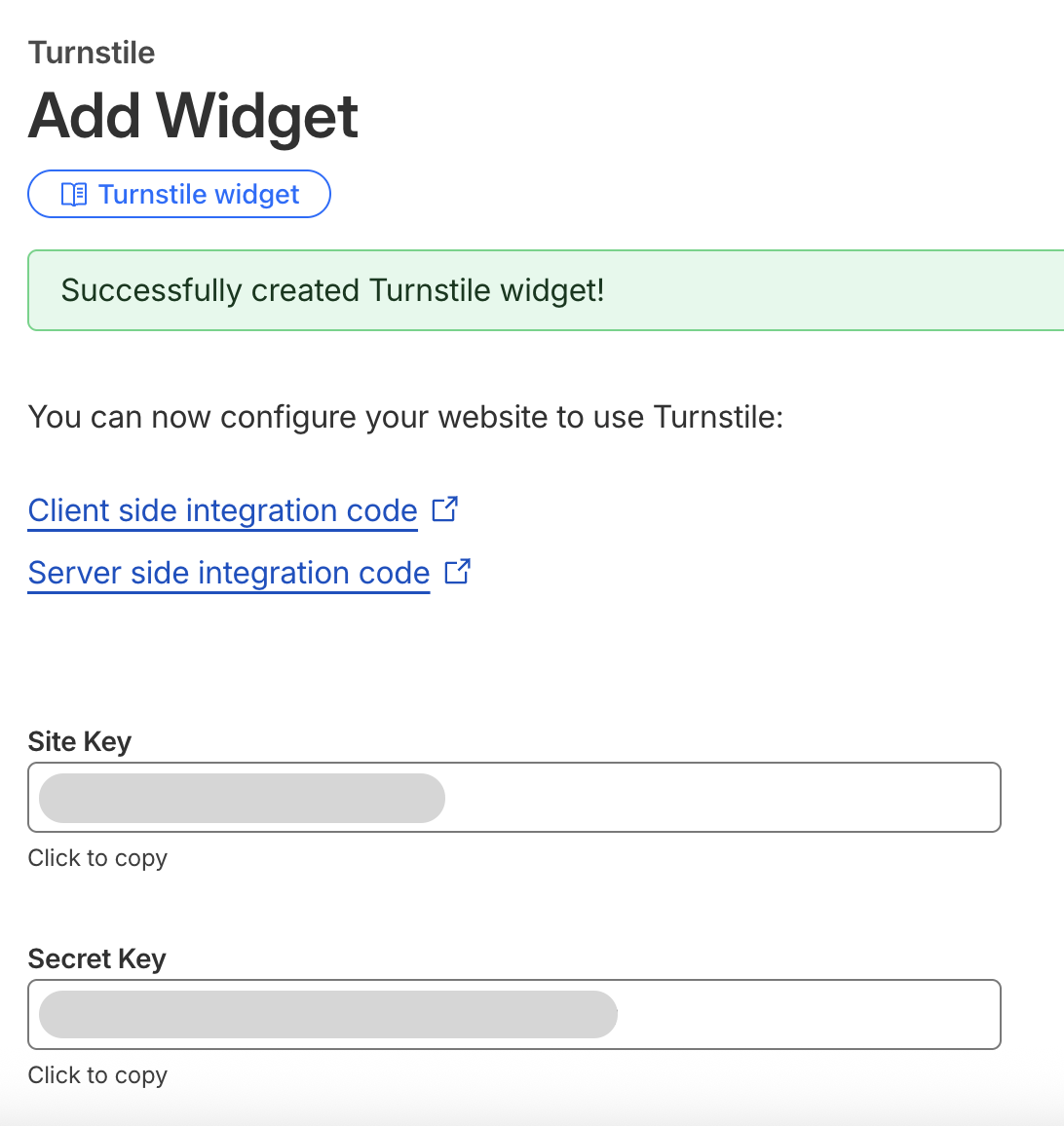
Click Create once completed.
After creation, Cloudflare will generate two values:
Site key
Secret key
Go to your White Label Settings
Open Security
Paste the keys into the corresponding fields:
Site key → Cloudflare Site key
Secret key → Cloudflare Secret key
Click Save changes
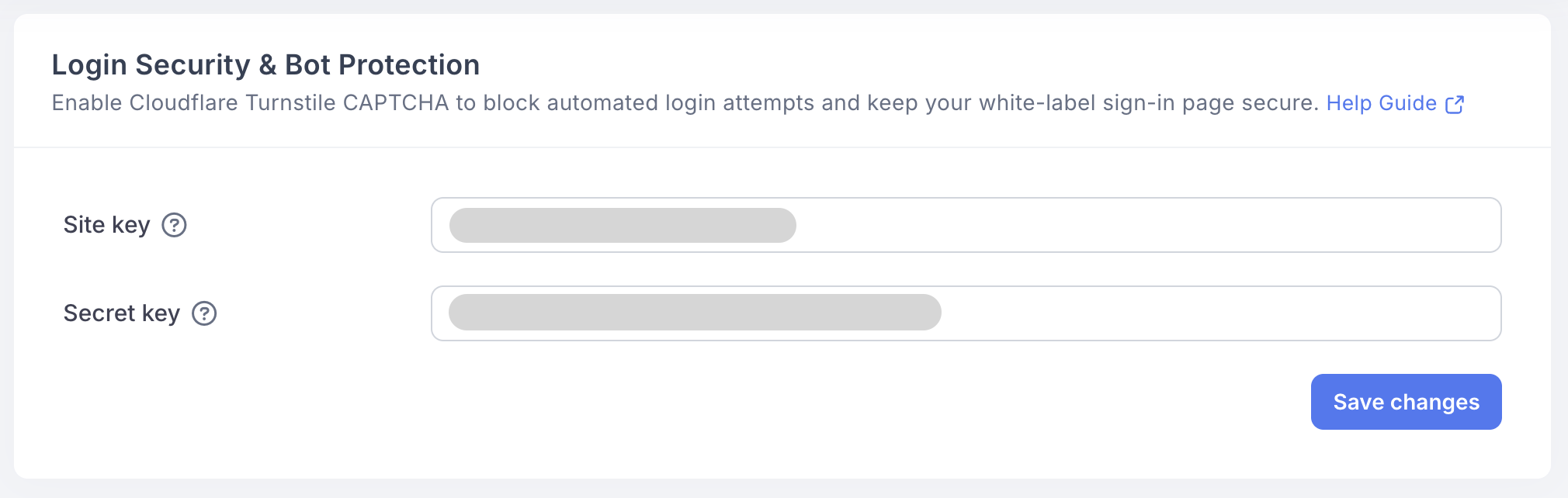
Turnstile is now enabled on your white-label sign-in page.
Changes apply immediately after saving
If the keys are invalid or removed, login protection will be disabled
You can rotate keys at any time in Cloudflare if needed
Turnstile runs silently for most users and does not interrupt normal login flows
For advanced configuration options, refer to Cloudflare’s official Turnstile documentation.
Once enabled, your login pages are protected against automated abuse while remaining seamless for legitimate users.